 FollowThru
 User's Guide
Everything you need to set up FollowThru, work your follow-ups every day, choose your own follow-up timing, and turn WarpCard scans into conversations.
Quick start: up and running in 5 minutes
FollowThru tells you exactly who to follow up with today. Open it each morning, reach out to the people on your list, tap Log touch, and FollowThru schedules the next follow-up for you.
- Open FollowThru at
smartmoneyandlegacy.com/followthru/app. No account or download needed. - Put it on your home screen so it opens like an app. See how.
- Add your first contacts one at a time, or import a list from your phone or a spreadsheet. See how.
- Pick your follow-up timing in Settings, or keep the built-in 2-day, 2-week, 2-month rhythm. See how.
- Work your list each day. Reach out, tap Log touch, done. See how.
Want to look around first? Go to Settings → Load sample data to fill the app with practice contacts. When you're ready for the real thing, use Erase all data on the same screen.
Put FollowThru on your phone
FollowThru is a web app. There's nothing to download from the App Store or Google Play. You add it to your home screen from your phone's browser, and it opens full screen like any other app.
| Phone | Steps |
|---|---|
| iPhone use Safari | Open the app link → tap Share (square with an arrow; on newer iPhones tap ••• first) → Add to Home Screen → Add. |
| Samsung Internet | Tap ≡ (bottom right) → Add page to → Home screen → Add. |
| Chrome Android | Tap ⋮ (top right) → Add to Home screen → Install. |
| Computer | Open the app link in any browser and bookmark it. |
iPhone tip: the home-screen icon keeps its own storage, separate from Safari, so it may look empty the first time. Open it from the icon, then use Settings → Restore purchase and Cloud sync to bring your contacts in.
Free plan and lifetime access
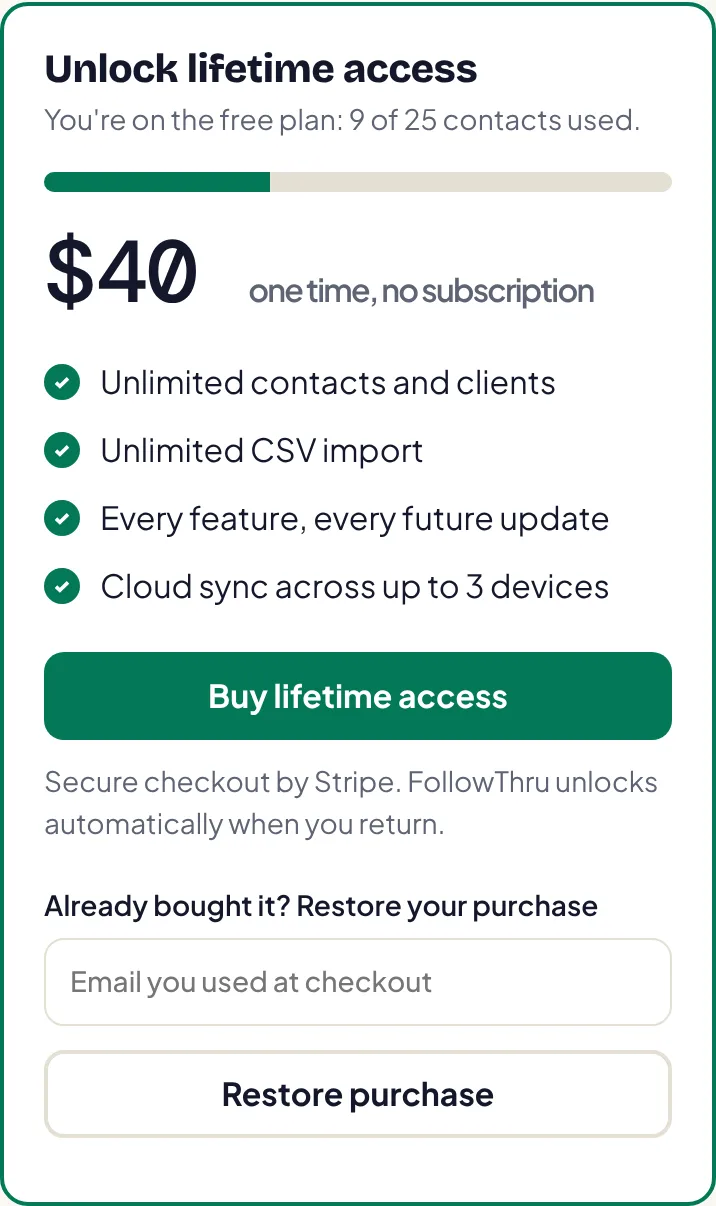
Everyone starts free. The free plan holds 25 contacts with every feature included. When you're ready for more, unlock lifetime access with a one-time $40 purchase. No monthly fees, ever.
- Unlimited contacts and clients
- Unlimited CSV import
- Cloud sync across up to 3 devices
- Every future update
How to unlock
- Go to Settings and tap Buy lifetime access.
- Pay on the secure Stripe checkout page.
- You're sent back to FollowThru, and it unlocks on its own.
Using another phone or computer?
On the new device, open Settings, type the email you used at checkout under Already bought it? Restore your purchase, and tap Restore purchase. Each purchase works on up to 3 devices. To free a spot, open FollowThru on a device you no longer use and tap Settings → Remove this device.
Your daily routine
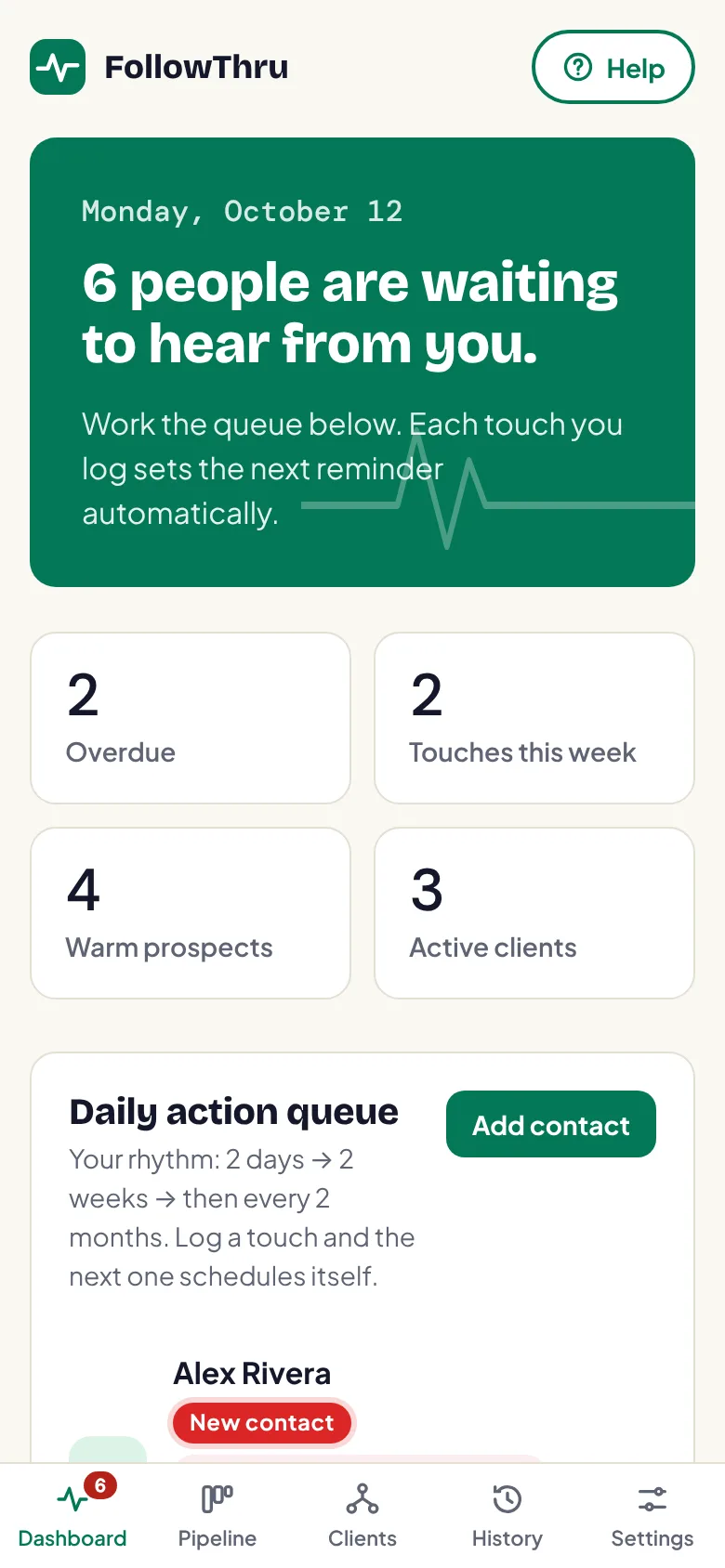
Open FollowThru and you land on the Dashboard. The top card tells you how many people are waiting to hear from you today.
- Daily action queue: everyone due today or overdue. New contacts sit at the very top.
- Quick stats: overdue, touches this week, warm prospects, and active clients.
- Coming up this week: who's due in the next 7 days.
- Quick note: log something about anyone without leaving the dashboard.
Each person in the queue shows little labels so you know where they stand:
- Due today or how many days overdue
- 2-week follow-up which step of your rhythm they're on, with a progress bar
- Warm or cold, and their stage, like New lead or Presented
Log a touch in seconds
- Reach out by call, text, DM, email, or in person.
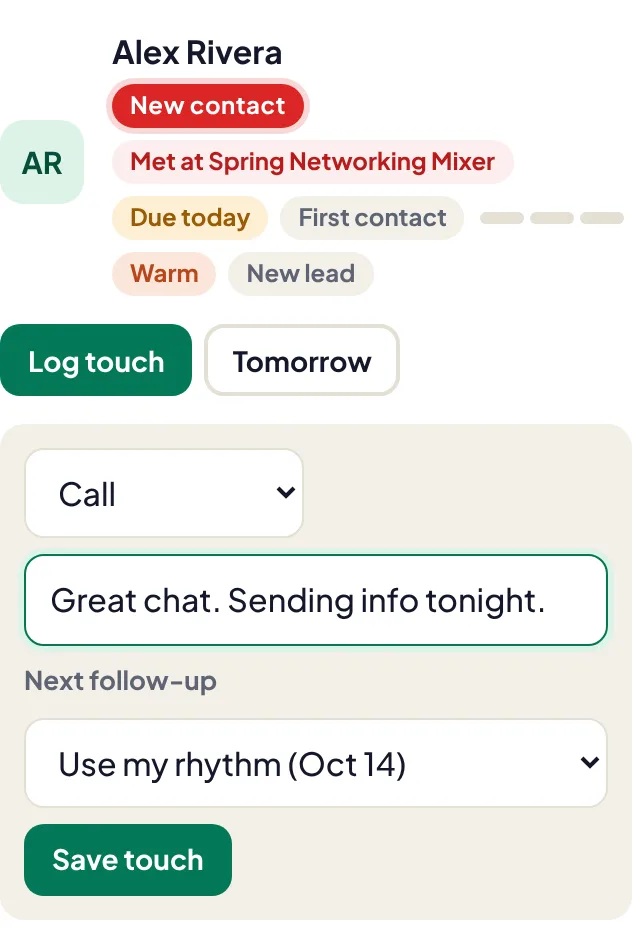
- Tap Log touch next to their name.
- Pick how you reached them and add a quick note if you like.
- Check Next follow-up. It's already set to Use my rhythm, with the date shown. Change it if this person needs something different (see Follow-up timing).
- Tap Save touch. They leave today's list and come back on their next date.
Not ready to reach out today? Tap Tomorrow to push them to tomorrow's list.
Logged a Presentation? A new lead or contacted prospect moves to Presented automatically, and their rhythm starts over from step 1. That's when follow-up matters most.
Follow-up timing: your rhythm, your way
Every new contact is due today. Each time you log a touch, FollowThru moves them one step through your follow-up rhythm and sets the next date. After the last step, it keeps checking in on that schedule, so nobody falls through the cracks.
Out of the box, FollowThru uses the proven 2-day, 2-week, 2-month rhythm:
You can change that in three ways.
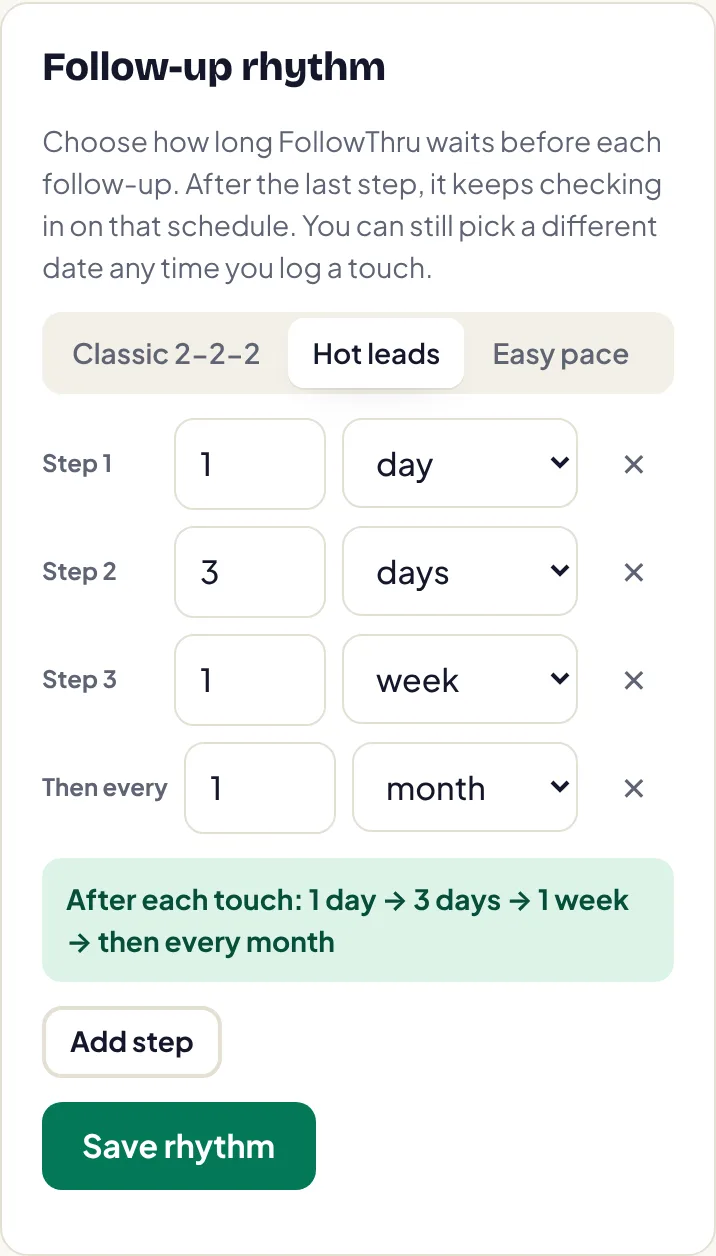
1. Set your own rhythm in Settings
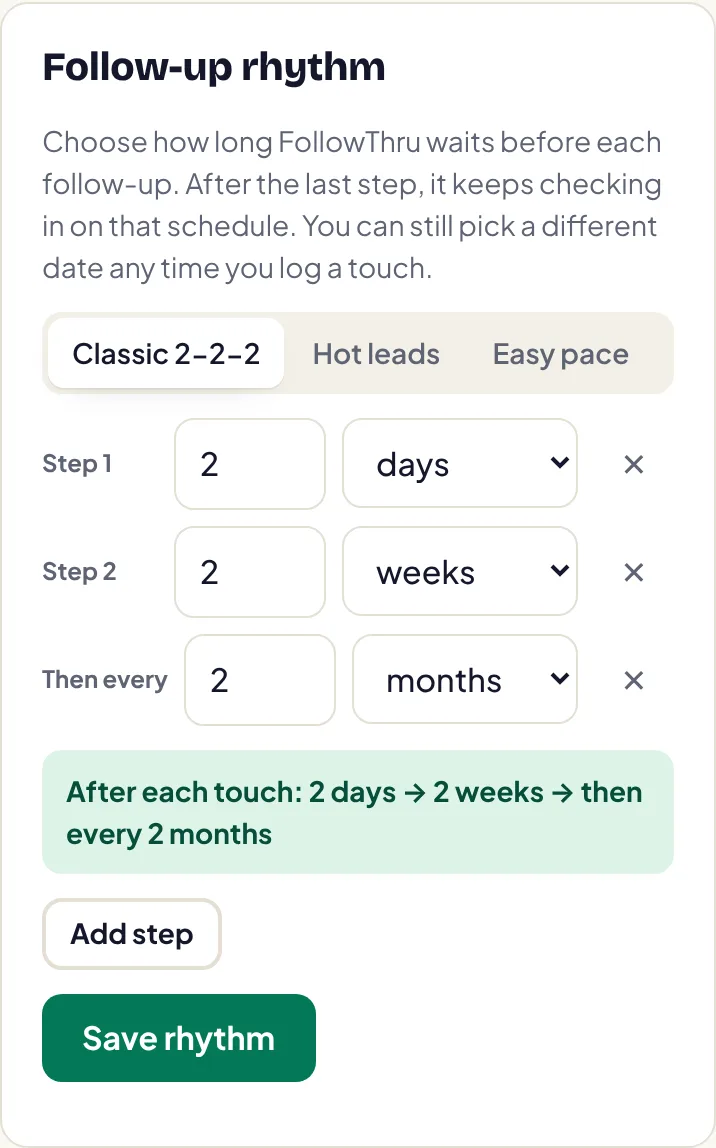
- Go to Settings → Follow-up rhythm.
- Tap a preset to start from: Classic 2-2-2, Hot leads (1 day, 3 days, 1 week, then monthly), or Easy pace (1 week, 1 month, then every 3 months).
- Fine-tune any step. Type a number and pick days, weeks, or months. Tap Add step for more (up to 6) or ✕ to remove one.
- The green box shows your rhythm in plain words. When it looks right, tap Save rhythm.
Good to know: a new rhythm applies from the next touch you log. Follow-up dates already on the calendar stay put. The last step is the one that repeats, so it's labeled Then every.
2. Pick a different date when you log a touch
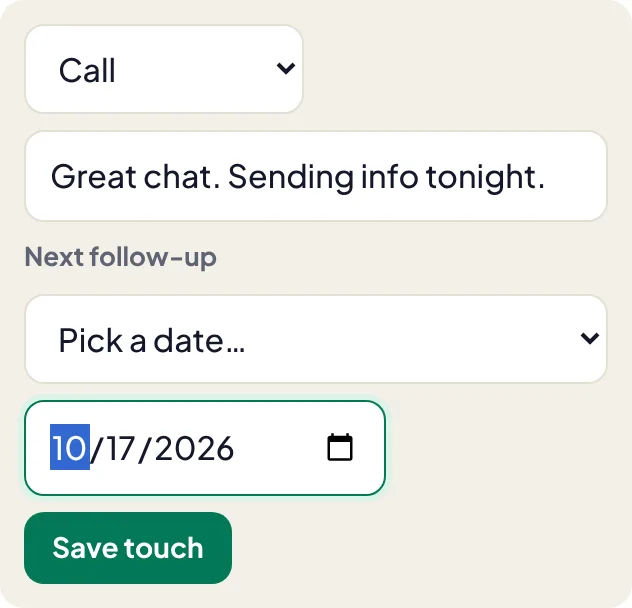
Some people need their own timing. "Call me after my trip." "Check back next quarter." When you log a touch, open Next follow-up and choose:
- Use my rhythm (the default, with the date shown)
- Tomorrow, In 3 days, In 1 week, In 2 weeks, In 1 month, or In 3 months
- Pick a date… for any exact day
Only this one follow-up changes. Your rhythm picks back up after the next touch.
3. Move a date any time from the contact page
Tap a person's name to open their contact page, then change Next follow-up date. They'll show up on that day. See the contact page.
Add your contacts
Add one person
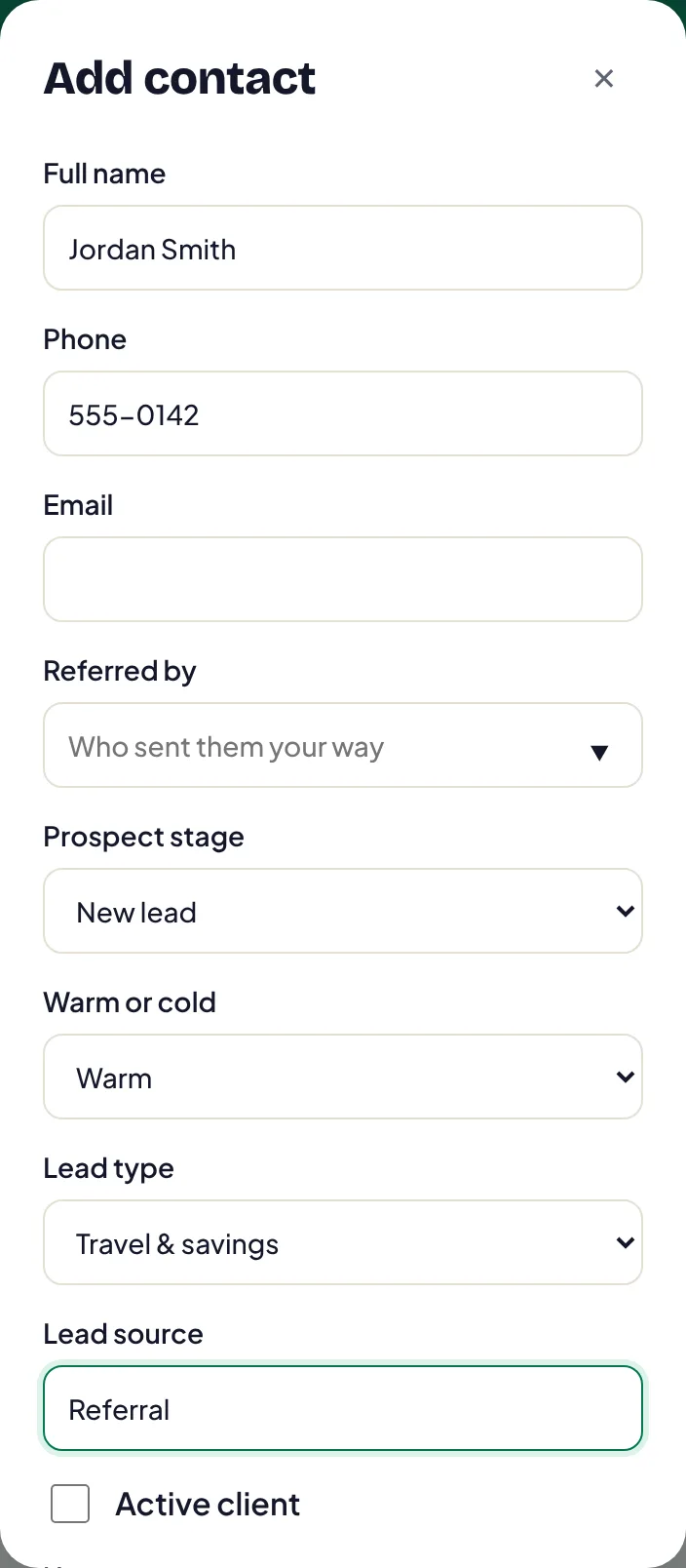
- Tap Add contact on the Dashboard (or Add prospect / Add client on the other screens).
- Fill in their name. Phone, email, and everything else are optional.
- Set their stage, warm or cold, lead type, and where you met them (lead source).
- Check Active client if they already buy from you.
- Tap Save contact. New people are due today for their first touch, with a red New contact badge.
Bring in a list you already have
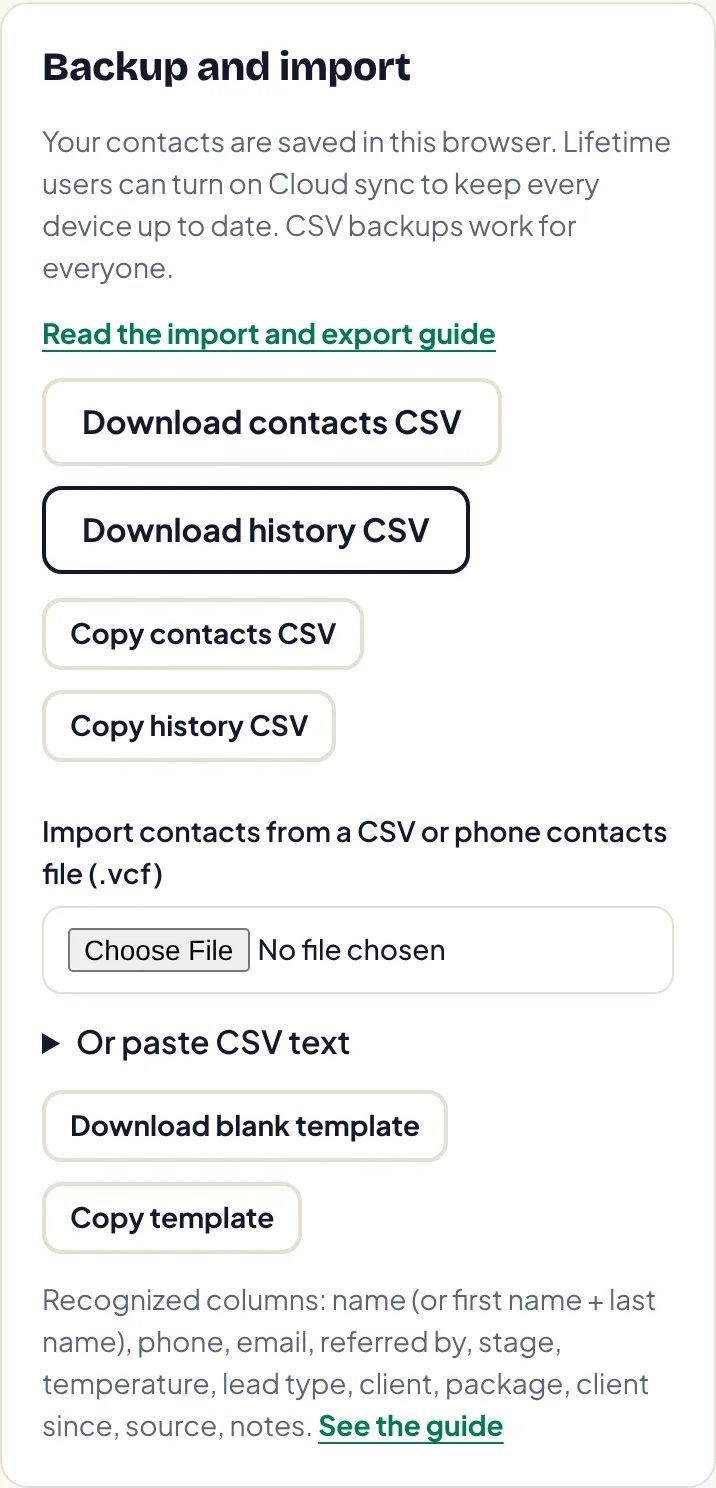
Go to Settings → Backup and import and choose your file under Import contacts. FollowThru reads two kinds of files:
- Phone contacts (.vcf): on iPhone, open the Contacts app, select contacts, and share them as a file. On Android, go to contacts.google.com → Export → vCard.
- Spreadsheet (.csv): from Excel, Google Sheets, or another app. Tap Download blank template to see the column names FollowThru looks for.
Recognized columns: name (or first and last name), phone, email, referred by, stage, temperature, lead type, client, package, client since, source, and notes. Extra columns are ignored.
Heads up: importing adds contacts, so importing the same file twice creates duplicates. Changed your mind? An Undo button appears right after an import.
Make the lead types fit your business
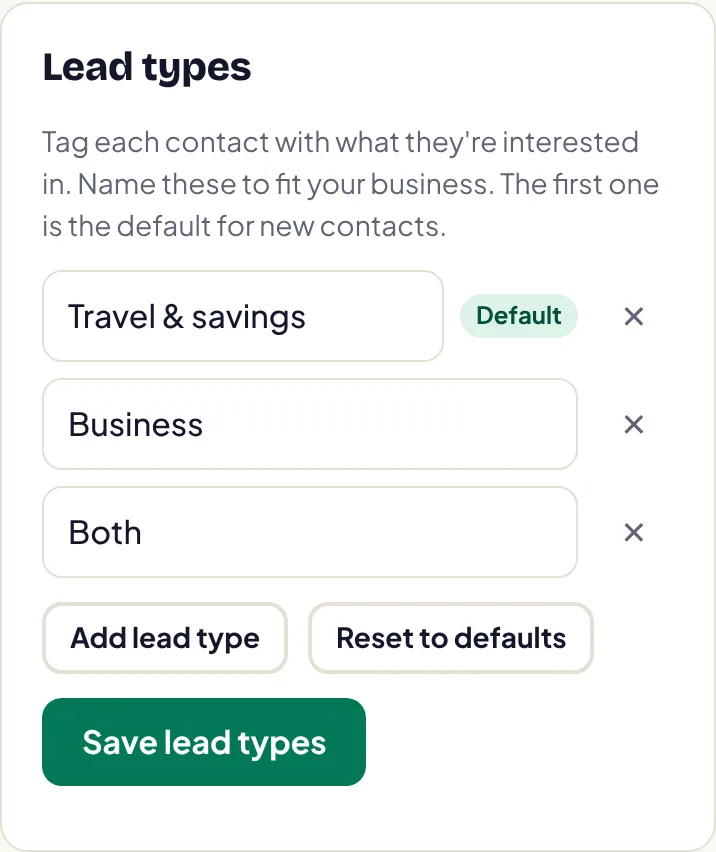
Lead types tag what each person is interested in. They start as Travel & savings, Business, and Both, but you can rename them, add up to 6, or remove ones you don't use in Settings → Lead types. The first one is the default for new contacts. Tap Save lead types when you're done.
Contact page, pipeline, clients and history
The contact page
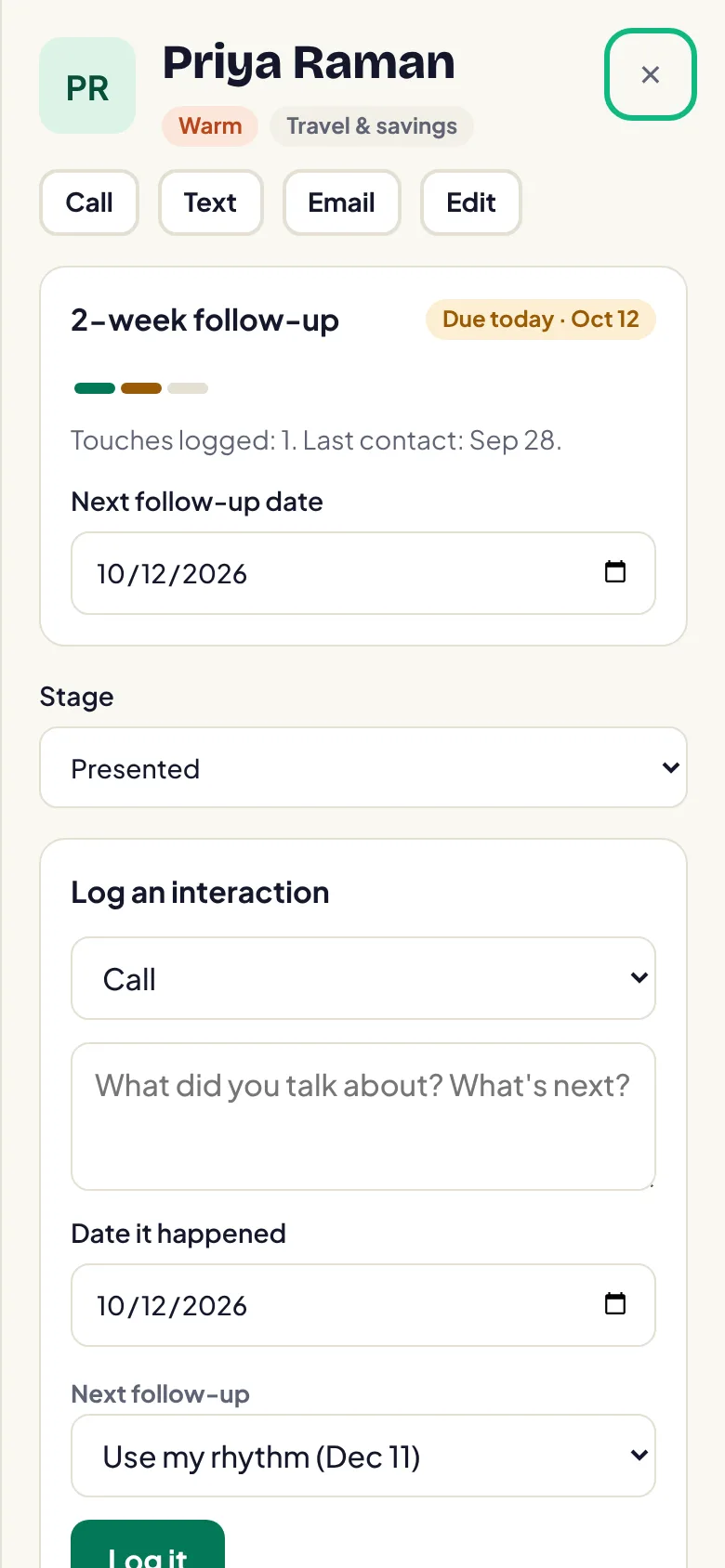
Tap anyone's name to open their page. From here you can:
- Call, text, or email them with one tap
- See which follow-up step they're on and when they're due
- Change their Next follow-up date
- Move them to a new stage
- Log a call, text, meeting, or note, including one from an earlier day, and choose when to follow up next
- Read their full history and your notes
Tap Edit to update their details or delete them.
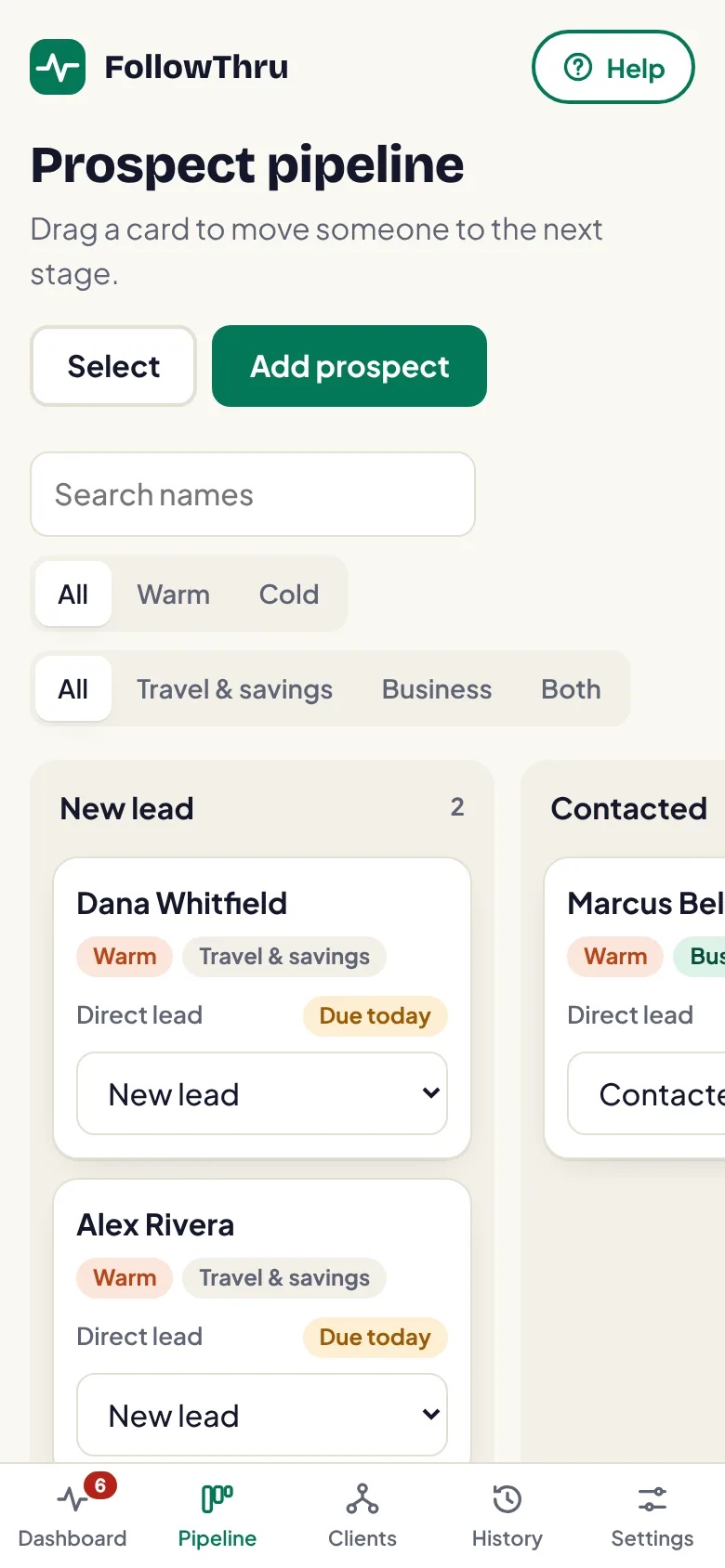
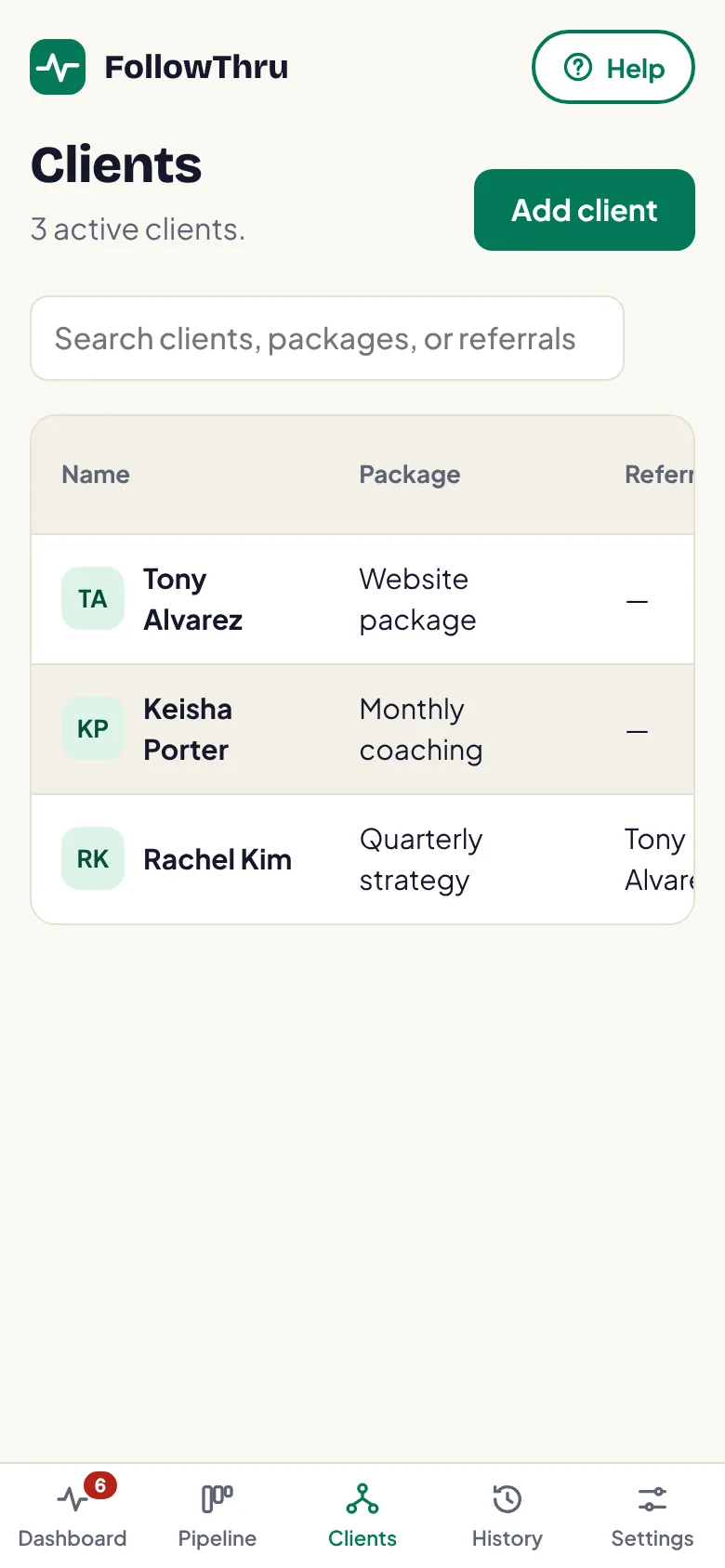
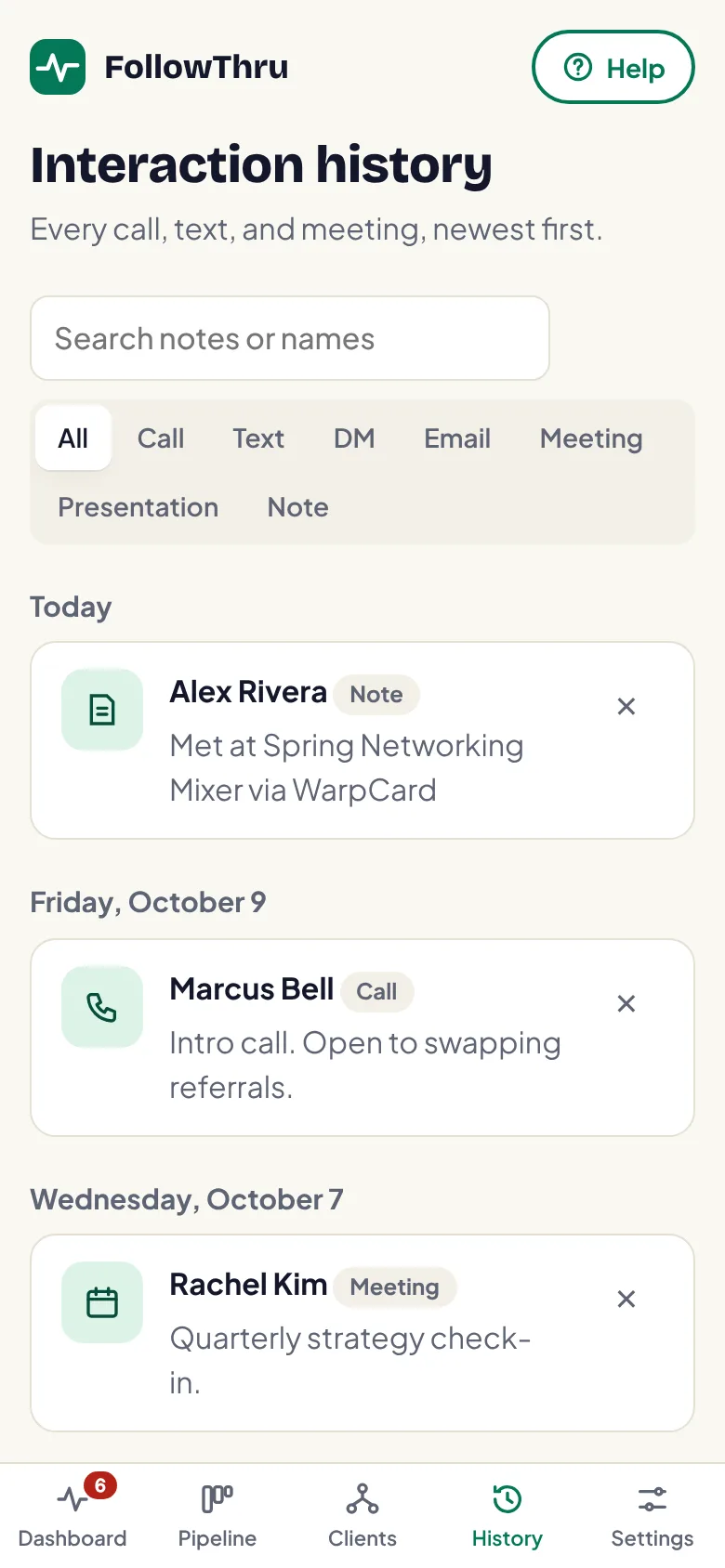
The stages are New lead → Contacted → Presented → Following up → Client, plus Not now for people to check back with later. Logging a first touch moves a new lead to Contacted for you.
WarpCard + FollowThru
WarpCard is a digital business card with a QR code. When someone scans it, they can save your contact and share theirs. Every person who shares their info goes straight into FollowThru as a new lead, due for follow-up today. No typing, no business cards in a drawer.
- 1They scan
Your printed QR, your phone screen, or your card link.
- 2They share
They tap Share your info and send their name, phone or email, and where you met.
- 3You're notified
You get an email with their contact card within seconds.
- 4It's in FollowThru
They're added as a New lead with a first touch due today.
Getting connected
Your WarpCard is linked to your FollowThru account by Smart Money & Legacy when your WarpCard is set up. After that, there's nothing to turn on. You need:
- FollowThru lifetime access, so leads can land in your account
- Cloud sync turned on on each phone or computer you use, so each device picks up new leads (see how)
Already have FollowThru and want to add WarpCard, or the other way around? Email billing@smartmoneyandlegacy.com and ask to link them.
What a WarpCard lead looks like
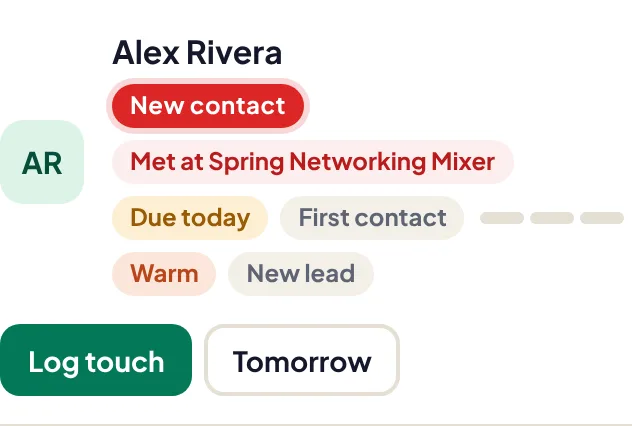
Every WarpCard lead jumps to the top of your Daily action queue with:
- A red New contact badge
- Where you met, like Met at Spring Networking Mixer
- Stage New lead, temperature Warm, and lead source WarpCard · [where you met]
- A note in their history, like "Met at Spring Networking Mixer via WarpCard"
Already have that person in FollowThru (same email, or the same last 10 digits of their phone)? They aren't duplicated. They get a new note and move onto today's list instead.
Work your WarpCard leads
- Open FollowThru. New WarpCard leads are at the top of the Daily action queue.
- Reach out while the meeting is fresh: call, text, or email.
- Tap Log touch, pick how you reached them, add a note, and tap Save touch.
- The red badge goes away, they move to Contacted, and their next follow-up is set by your rhythm, or by the date you picked.
The New contact badge stays for up to 3 days or until you log your first touch, whichever comes first.
Pro tip: tag a whole event. Add ?at= and the event name to your card link, like smartmoneyandlegacy.com/c/yourname?at=Spring Mixer. Make a QR code from that link for the event table, and every lead from it arrives tagged with that event, even if they skip the "Where did we meet?" box.
Why the email matters: phones don't let web apps sync while they're fully closed. The lead email reaches you right away, and the lead is waiting in FollowThru the moment you open it. Turn on notifications for that email so new leads buzz you like a text.
Cloud sync and backups
Cloud sync (lifetime access)
Keep your phone, tablet, and computer matched. Your list is encrypted and private to you.
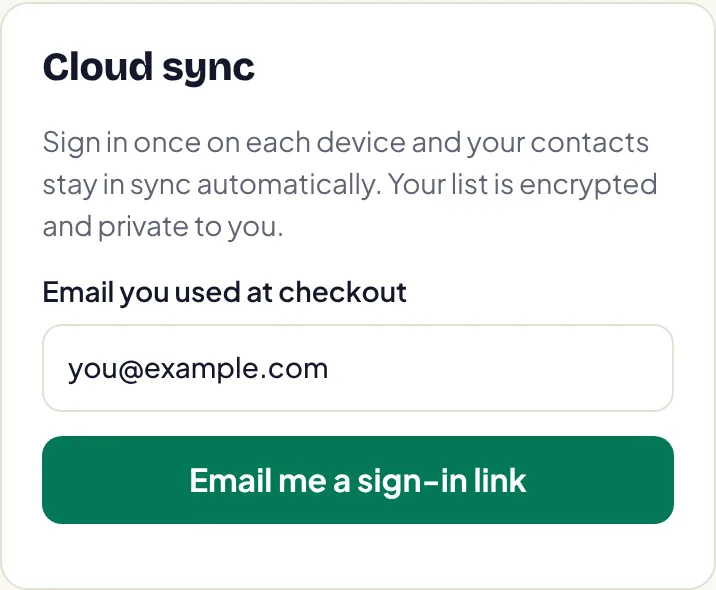
- Go to Settings → Cloud sync.
- Enter the email you used at checkout and tap Email me a sign-in link.
- Open the email on the same device and tap the link. No password needed.
- Repeat once on each device. After that, syncing is automatic: when you open the app, when you switch back to it, and every 30 seconds while it's open.
Your follow-up rhythm and lead types sync too. Change them on one device and the others follow.
Back up your list
Your contacts are saved on your device. Anyone can make a backup: go to Settings → Backup and import and tap Download contacts CSV (and Download history CSV for your notes). Keep the file somewhere safe, like your email or cloud drive. To restore, import that file.
Want your synced data gone for good? Settings → Cloud sync → Delete my cloud data erases the cloud copy and signs out every device.
Questions and fixes
The app opened empty on my iPhone
The home-screen icon has its own storage, separate from Safari. Go to Settings → Restore purchase, then turn on Cloud sync. On the free plan, download a contacts CSV in Safari and import it in the home-screen app.
It says my purchase is already on 3 devices
Each purchase works on up to 3 devices. On a phone or browser you no longer use, open FollowThru and tap Settings → Remove this device. That frees a spot.
I changed my rhythm, but someone's date didn't change
That's on purpose. A new rhythm applies from the next touch you log, so dates you already planned stay put. To move one person now, open their contact page and change their Next follow-up date.
How do I stop following up with someone?
Move them to the Not now stage. They'll still come around on your rhythm's last step (for example every 2 months) so "not now" doesn't become "never." If you're done for good, open their page, tap Edit, and delete them.
I got a WarpCard lead email, but they're not in FollowThru
Give it a few seconds, or go to Settings → Cloud sync → Sync now. Make sure that device is signed in to Cloud sync.
A WarpCard lead has no red New contact badge
They were already in your list, so they got a new note instead of a duplicate. Search their name.
The sign-in email never came
Check your spam folder. Use the same email you used at checkout. If you asked several times, wait 15 minutes and try once more.
Where is my contact data stored? Can anyone else see it?
Your list is saved on your device. If you turn on Cloud sync, an encrypted copy is kept so your devices match. Your contacts are private to you and never shown to anyone else.
Can I use FollowThru on my computer too?
Yes. Open smartmoneyandlegacy.com/followthru/app in any browser. With lifetime access, turn on Cloud sync to keep your phone and computer matched.
Still stuck? Email billing@smartmoneyandlegacy.com.